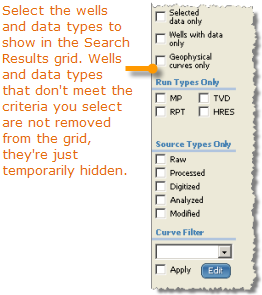
Filter the wells and curves that appear in the Search Results grid both using the options that appear to the left of the Search Results grid, which are called curve constraints, and by creating a custom filter. Instead of limiting the volume of data you initially display in the Search Results grid, it's better to initially display as much data as available so that you get a good idea of what's available in an area and then reduce what's displayed in the Search Results grid using filters.
To filter using curve constraints
1. With the catalog displayed, filter the rows so that only those with data appear by clicking Wells with data only in the curve constraints pane to the left of the Search Results grid.
2. Additional options with which you may want to filter the catalog are as follows:

|
Selected data only - only wells and curves with a checkmark in the selected column appear. This can be useful for transactional accounts to verify you do not incur unnecessary charges for ad hoc customers. Wells with data only - wells without data specific to the tab you are currently viewing (logs or well files) are hidden from the display. Geophysical curves only - Wells with sonic, density, and gamma curves appear. |
|
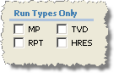
MP (Main Pass - measured depth), RPT (Repeat Pass), TVD (True Vertical Depth), HRES (High Resolution). |
|
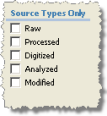
Raw - the unmodified file as originally provided by the logging company. Most of our logs are in this format. Processed - converted from tape. For Source Types, LOGtech typically only carries unprocessed logs. If you have a proprietary data source configured as well with digital logs, you might select the Processed option. Digitized - hand-digitized. Analyzed - analyzed by petrophysicists. Modified - corrected. |
|
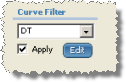
Select New Custom Filter to apply a filter from the drop-down list, or with a custom filter that you want to modify selected in the drop-down list, click Edit. Once ready, click Apply. |
Only wells that match the criteria specified above appear in the Search Results grid. Filtered items are not removed from the actual catalog, just hidden from the current view.
To create a custom curve filter
1. With the catalog displayed, filter the rows so that only those with data appear by clicking Wells with data only.
2. Using the Curve Filter drop-down list, select New Custom Filter
OR
With a custom filter that you want to modify selected in the drop-down list, click Edit.
The Custom Filter Settings dialog box appears.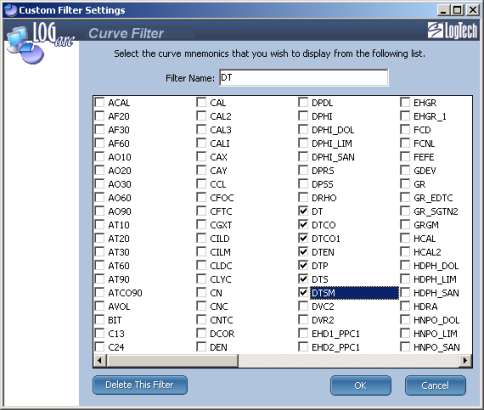
For new custom filters, type a name in the Filter Name box.
3. Select the desired mnemonics to include in your filter, and then click OK.
Save this filter as a template to modify in the future or when you are done with it, click Delete this Filter in the bottom-left of the Curve Filter dialog box.
| Selecting Wells and Logs | Changing the Search Results Grid |